If you have ever needed to change your WiFi password, check who is connected to your network, or fix a connection that keeps dropping, you have probably been told to “just log in to your router.” That sounds simple until you are staring at a blank page, a login box that rejects your password, or a sticker covered in numbers you do not recognise.
This guide takes the mystery out of one specific address: 192.168.8.1. You will learn what it is, how to open it, what to type when it asks for a username and password, and what to do when it does not work. You do not need technical training, and you do not need to install anything. You just need a device connected to the router, a browser, and a few minutes.
The most important thing to know before you start is this: 192.168.8.1 is not a website. It is a private address that belongs to your own local network. Typing it into your browser should take you to your router’s own settings page, not to the public internet. If it takes you nowhere, that usually tells you something useful too, and we will come back to that in the troubleshooting section.
What Is 192.168.8.1?
Every device on a home network needs a way to find the router, and the router needs a way to be found. On many networks, that job is done by a private IP address, a set of numbers used only inside your home or office network. 192.168.8.1 is one of those private addresses.
Think of it like the internal extension number for your router. When your phone, laptop, or tablet connects to your WiFi, it is given its own address on the same network, and it is also told where the router lives. In many setups, that router address is 192.168.8.1. Opening that address in a browser is simply a way of knocking on the router’s door and asking to see its control panel.
That control panel is often called the admin panel, the web interface, or the router settings page. Different router makers use different names and layouts, but the purpose is the same. It is where the router keeps its settings: the WiFi network name, the WiFi password, security options, connected devices, and sometimes parental controls, guest networks, and firmware updates.
You cannot reach someone else’s router by typing 192.168.8.1 into your browser at home. Because it is a private address, it only points to the router on the network you are currently connected to. That is also why you must be connected to that router, by WiFi or by cable, before the page will load. If you are on mobile data, or on a neighbour’s WiFi, you will not reach your own router this way.
It is also worth clearing up a common mix-up. 192.168.8.1 looks a little like a website address, but it is not meant to be searched for. If you type it into a search engine instead of the browser’s address bar, you will get search results about routers, not your router’s login page. Always put it in the address bar at the top of the browser, where website addresses normally go.
Which Routers Use 192.168.8.1?
Not every router uses 192.168.8.1. Some use 192.168.0.1, some use 192.168.1.1, and some use a completely different address or a web address printed on the router itself. There is no single address that works for every router in the world.
That said, 192.168.8.1 is used by some home routers and by a number of mobile broadband routers, the kind that create a WiFi network from a mobile data connection. If your router’s label, quick-start guide, or internet provider instructions mention 192.168.8.1, then that is a strong sign it is the right address for your model.
The reliable way to check is to look at the router itself. Turn it over, or look at the side or bottom, and you will usually find a sticker with the admin address, the default username, and the default password. If the sticker says 192.168.8.1, you are in the right place. If it says something else, use the address on the sticker instead, even if a friend or a forum post told you to try 192.168.8.1.
This matters because guessing can waste a lot of time. People often try address after address, reset the router unnecessarily, or change settings on the wrong device, when the answer was printed on the label all along. A quick look at the sticker first can save you all of that.
If you cannot find a sticker, or it has worn off, do not worry. Later in this guide you will learn how to find your router’s actual gateway address on a phone or a computer. That check takes less than a minute and tells you for certain which address your network is using.
Before You Log In: A Quick Checklist
A smooth login starts before you open the browser. Run through this short checklist and you will avoid most of the usual frustrations.
First, make sure your device is connected to the router you want to manage. If you have two routers, a range extender, or a mobile hotspot nearby, it is easy to be connected to the wrong one. Connect to the WiFi network name shown on your router’s label, or plug an Ethernet cable directly into the router if you have one handy. A wired connection is often the most reliable option for admin work, because it removes WiFi signal problems from the equation.
Second, find the login details. Again, the router label is your best friend here. Note down the admin address, the default username, and the default password exactly as printed, including any capital letters. If you changed the admin password in the past, you will need the changed password, not the default one. Keep a note of it somewhere safe, but not stuck to the router where visitors can see it.
Third, use a normal, up-to-date browser. You do not need a special app for most routers, although some mobile broadband routers also offer an app as an alternative. A standard browser on a phone, tablet, or computer works fine. If one browser refuses to load the page, trying another browser is a sensible second step, but it is rarely the first problem.
Fourth, be ready for a security warning. Many routers use a local security certificate that your browser does not recognise, so you may see a message saying the connection is “not private” or “not secure.” This is common on local admin pages and does not mean you have typed the wrong address. You can usually proceed by choosing the browser’s option to continue to the site. You are connecting to a device in your own home, not sending details across the public internet, but you should still only do this on a network you trust, and you should never enter router credentials on a public WiFi network you do not control.
Finally, give the router a moment. If it has just been switched on, or just restarted, it may need a minute or two before its admin page responds. If you try too early, you may get a timeout that looks like a failure when it is really just impatience.
How to Log In to 192.168.8.1, Step by Step
Here is the process in plain order. Follow it one step at a time, and stop as soon as you are in.
Step 1: Connect your device to the router. Use the router’s WiFi, or connect with an Ethernet cable. Turn off mobile data on your phone if you want to be certain the phone is using WiFi and not the mobile network, because some phones switch to mobile data when WiFi looks weak.
Step 2: Open your browser. Any modern browser will do. Make sure you are opening a new tab, not a search page inside another app.
Step 3: Type 192.168.8.1 into the address bar. Type it exactly, with the dots in the right places, and press Enter. Do not add “www” at the front, and do not add “.com” at the end. The correct form is simply 192.168.8.1. If your browser tries to turn it into a search, check that you typed it into the address bar, not the search box on a search engine’s homepage.
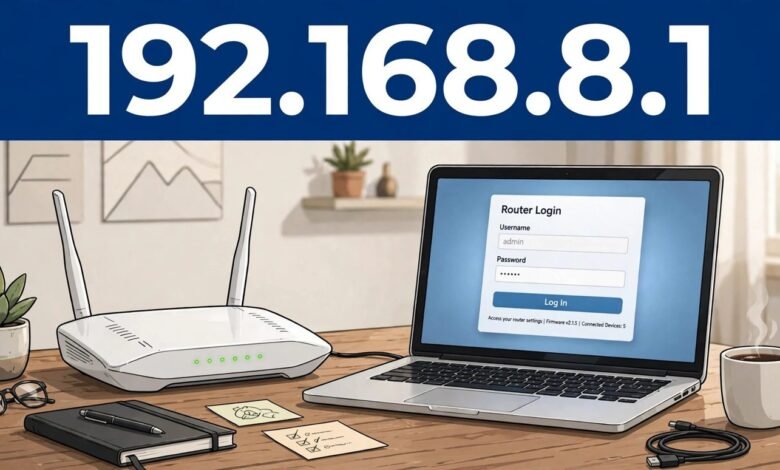
Step 4: Wait for the login page. The router should show a login screen asking for a username and a password. On some routers, it may ask only for a password. The design varies, but the idea is the same.
Step 5: Enter the username and password. Start with the details printed on the router’s label. Type them carefully. Usernames and passwords on routers are often case-sensitive, so “Admin” is not the same as “admin.” If you have changed the password before, use your changed password.
Step 6: Click Log In, Sign In, or the equivalent button. If the details are correct, you should land on the router’s home or status page. That page usually shows the connection status, the WiFi network name, and how many devices are connected.
That is the whole login in its simplest form. If it worked first time, well done. The rest of this guide will help you use the panel safely and fix things if they go wrong.
A small tip that helps a lot of people: if the login page loads but your password is rejected, check whether your keyboard has auto-capitalised the first letter, or added a space at the end. Mobile keyboards are notorious for this. Turn off auto-capitalisation for that field, or type the password slowly and check each character.
Default Username and Password for 192.168.8.1
This is the part where many guides give a single answer and present it as a fact. The honest answer is less tidy, but much more useful: there is no single default username and password for 192.168.8.1, because the address is used by different router models, and each maker chooses its own defaults.
Here are the combinations most commonly printed on router labels, shown so you can recognise them if you see them. Try the one on your own label first, and only try others if your label is missing.
| Username | Password | Notes |
|---|---|---|
| admin | admin | A very common factory default on many routers |
| admin | password | Also common, especially where the maker uses a plain word as the starting password |
| admin | (blank) | Some routers ask for a username only, or leave the password field empty at first setup |
| (blank) | admin | Less common, but seen on some older models |
Some newer routers do not use a generic default at all. Instead, each unit ships with a unique admin password printed on its label. That is a good security practice, because it means a password that works on one person’s router will not work on yours. If your label shows a long, random-looking password, that is your default, and you should use it exactly as printed.
If you have already changed the admin password and forgotten it, the default will not help you. The router only accepts the current password, not the one it shipped with. In that case, the only reliable way back in is a factory reset, which we will cover later. Before you go that far, though, check any password manager you use, any notebook where you may have written it down, and any setup notes from when the router was installed. A forgotten password is often written down somewhere sensible and then forgotten along with the password itself.
Never share your router admin password casually, and never reuse your email or banking password for your router. The admin password controls your whole home network, so it deserves its own strong, unique value.
What You Can Do Inside the Admin Panel
Once you are logged in, it is tempting to click around and change things just to see what happens. Resist that urge a little. The admin panel controls how your network behaves, and a wrong change can disconnect every device in the house. Change one thing at a time, note what you changed, and test it before moving on.
Here are the settings most people actually need.
Change Your WiFi Name and Password
Your WiFi name, technically called the SSID, is the name you see when you look for networks on your phone. Your WiFi password is the key that lets devices join. Both can usually be changed under a section called Wireless, WiFi Settings, or WLAN Settings.
If you change the WiFi password, every device will need the new password. That includes phones, laptops, smart TVs, printers, and smart speakers. It is worth doing this in one sitting, so you can reconnect everything straight away, rather than discovering a disconnected printer days later.
Choose a WiFi password that is long enough to be hard to guess, but easy enough for you to type on a TV remote or a smart device. A short phrase made of unrelated words, with a number or two, is usually a good balance. Avoid using your address, your family names, or your phone number.
Change the Admin Password
This is different from the WiFi password, and it is just as important. The admin password is what you just typed to log in to 192.168.8.1. If it is still the factory default, change it. Look for a section called System, Administration, Account, or Change Password.
Pick a strong password and store it in a password manager or a safe place. If someone else in the household also manages the network, make sure they know where to find it. There is nothing more frustrating than locking yourself out of your own router because the one person who knew the password is away.
See Connected Devices
Most admin panels have a page listing connected devices. This is useful when your connection feels slow, or when you want to check whether an unfamiliar device is using your network. You will usually see device names, and sometimes the type of device, such as a phone or a laptop.
If you see a device you do not recognise, do not panic straight away. It may be a smart TV, a game console, or a guest’s phone with a generic name. Change your WiFi password first, which will disconnect unknown devices, then reconnect only the devices you own. If the unknown device returns after a password change, that is the time to look more closely at your router’s security settings.
Restart the Router From the Panel
Many panels include a restart or reboot option. This is a softer option than pulling the plug, and it can fix temporary glitches without wiping your settings. A restart is not the same as a factory reset. A restart keeps your settings. A factory reset erases them. Keep that distinction clear before you click anything labelled Reset.
Check for Firmware Updates
Firmware is the router’s internal software. Makers release updates from time to time to fix bugs and security issues. Your admin panel may have an update section, or it may check automatically. If an update is available, apply it when you can afford a brief interruption, and do not switch the router off during the update. If your router is very old and no updates are offered, that is useful information too, and it may be a sign to consider a replacement rather than keep running outdated software.
Troubleshooting: When the 192.168.8.1 Page Will Not Load
A page that will not load is the most common problem with router admin access, and it has several different causes. Work through these in order, rather than jumping straight to a factory reset.
You Are Not Connected to the Right Network
This is the number one cause. Double-check that your device is connected to the router’s WiFi, not to mobile data, not to a neighbour’s network, and not to a different router in the house. If you are using a phone, turning mobile data off temporarily can remove all doubt. If you can, try an Ethernet cable. If the page loads over cable but not over WiFi, the problem is with the wireless connection, not with the admin address.
You Typed the Address in the Wrong Place
If you typed 192.168.8.1 into a search engine, you will see search results, not your router. Check the address bar at the very top of the browser. Clear it completely, type the numbers again, and press Enter. Also check for typos. A common mistake is typing 192.168.8.1 with a letter O instead of a zero, or adding an extra dot. The address uses only digits and dots.
Your Router Uses a Different Address
If 192.168.8.1 consistently fails, your router may simply use a different gateway address. Here is how to find the right one.
On a Windows computer, open the Command Prompt and type ipconfig, then press Enter. Look for the Default Gateway entry under your active connection. That number is your router’s address.
On a Mac, open System Settings, go to Network, select your connection, and look for the Router entry. That is the address to use.
On an Android phone, open WiFi settings, tap the connected network, and look for Gateway or Router. The exact wording varies by phone maker.
On an iPhone, open Settings, tap WiFi, tap the information icon next to your connected network, and look for Router. That number is your gateway.
If that number is not 192.168.8.1, use it instead. There is nothing wrong with your router; it just lives at a different address.
The Browser Is Showing a Cached Error
Browsers remember failed pages. If you tried the address while disconnected, the browser may keep showing the old error. Clear the browser cache for that page, try a private or incognito window, or try a different browser. Any of these can rule out a caching problem in seconds.
The Router Needs a Restart
If the router is running but its web page is not responding, a simple restart often helps. Use the power button if it has one, or unplug it, wait about thirty seconds, plug it back in, and wait a couple of minutes for it to fully start. Then try the address again. This does not erase your settings.
A VPN or Proxy Is Getting in the Way
If you use a VPN on your device, it may route your traffic away from your local network, which can block access to a private address like 192.168.8.1. Temporarily turn the VPN off, try the login again, and turn the VPN back on afterwards if you need it. The same applies to a proxy set in your browser or system settings.
The Page Loads but the Password Is Rejected
If the page loads and the password fails, slow down and check the basics first. Make sure Caps Lock is off, auto-capitalisation is off, and there is no trailing space. Try the password from the label again, character by character. If you changed the password before, try your changed password, and check your password manager.
If none of those work, and you are certain you have the right router and the right label, a factory reset is the last resort. We will cover that next, but treat it as a last resort, not a first step, because it erases your settings.
How to Factory Reset a Router (and When Not To)
A factory reset returns the router to the state it was in when it left the factory. Your WiFi name and password, your admin password, and any custom settings will be wiped. You will need to set the router up again from scratch, and every device will need to reconnect.
Only do this if you have lost the admin password and cannot recover it, or if a support adviser has told you to do it for a specific fault. Do not do it just because a login page was slow to load.
The usual method is a small reset button, often recessed so it cannot be pressed by accident. You typically press and hold it with a paperclip for about ten seconds, while the router is powered on, until the lights change. The exact timing varies by model, so check your router’s manual or label if you can. After the reset, the router will restart, and the default login details on the label should work again.
Before you reset, note down your internet provider settings if you needed special settings to get online in the first place, such as a username and password for your broadband connection. Some connections set themselves up automatically after a reset, and some do not. If you are unsure, ask your provider before resetting, rather than after.
Security Tips After You Log In
Logging in is only half the job. A few minutes of sensible security work now can prevent a lot of trouble later.
First, change the admin password if it is still the default. This is the single most valuable change you can make in the panel. A default password is public knowledge in the sense that it is printed on millions of similar routers, so it offers very little protection once someone is on your network.
Second, use strong WiFi encryption. Look for WPA2 or WPA3 in your wireless security settings, and avoid older options like WEP if your panel still offers them. WEP is outdated and easy to break. If your router offers WPA3, use it, but check that your older devices can still connect. If an old device cannot use WPA3, WPA2 is still a sensible choice.
Third, keep your WiFi password private. Do not share it with visitors by writing it on a card in the hallway, and consider using a guest network for visitors if your router offers one. A guest network lets guests get online without giving them access to your main network and its devices.
Fourth, turn off remote management unless you specifically need it. Remote management lets someone log in to your router from the internet, not just from your home. For most households, that feature should stay off. If you do not know what it is, leave it off.
Fifth, keep firmware updated. As mentioned earlier, updates fix security problems as well as bugs. If your router checks automatically, make sure that option is on. If it does not, check manually every few months.
Sixth, be careful with port forwarding and similar advanced settings. These settings open parts of your network to the internet for a specific purpose, such as gaming or a home server. If you do not understand a setting, do not change it, and do not follow random online instructions to open ports unless you understand why. A wrongly opened port can expose a device to the whole internet.
Finally, log out when you are done. This sounds small, but it matters on shared computers. Use the Log Out button in the panel rather than just closing the tab, especially if someone else uses the same device.
Common Mistakes to Avoid
A few mistakes come up again and again, and they are all easy to avoid once you know about them.
One is confusing the WiFi password with the admin password. They are two different passwords with two different jobs. The WiFi password lets a device join the network. The admin password lets a person change the network’s settings. Changing one does not change the other.
Another is typing the IP address into a search engine. As noted earlier, that gives you articles about routers, not your router. Always use the address bar.
A third is resetting the router at the first sign of trouble. A restart fixes most temporary glitches. A reset wipes everything. Try a restart first, every time.
A fourth is changing advanced settings without noting the original values. If you change a setting and your connection breaks, you need to know what to change back. Write down the original value, or take a photo of the screen before you change it. That simple habit has saved many people from a long evening of undoing changes.
A fifth is leaving the default admin password in place because “nobody will bother.” On a home network, the risk is not usually a stranger from across the world. It is a guest, a visitor, or a compromised device already on the network. A changed admin password is cheap insurance.
When to Contact Your Internet Provider
Some router problems are not yours to fix. Contact your provider if your internet connection itself is down and a restart does not help, if the router’s internet light stays red or off, if you need broadband login details after a reset, or if the router is provided by them and appears faulty.
When you call, it helps to be able to say what you have already tried: that you are connected to the router, that you tried the address on the label, that you restarted the router, and what lights you can see. That short summary saves time for both sides and gets you past the basic checks faster.
If the router is yours, not your provider’s, the maker’s support pages and manual are the next step. Keep the model number from the label handy, because support will almost certainly ask for it.
Frequently Asked Questions
What is 192.168.8.1 used for?
192.168.8.1 is a private IP address used by some routers as the address of their admin panel. Opening it in a browser, while connected to that router, lets you view and change router settings such as the WiFi name, WiFi password, and admin password.
Why does 192.168.8.1 not work for me?
The most common reasons are that you are not connected to the router that uses this address, that the address was typed into a search engine instead of the address bar, or that your router uses a different gateway address. Check your connection, check the address bar, and find your actual gateway address using the steps in the troubleshooting section.
What is the default username and password for 192.168.8.1?
There is no single default, because different router models use different defaults. Check the label on your router first. Common factory combinations include admin with admin, and admin with password, but newer routers often ship with a unique password printed on the label. If you changed the password before, the changed password is the one that works.
Is 192.168.8.1 safe to open?
Yes, when you are on your own trusted home network. It is a private local address, not a public website, so opening it connects you to your own router. Do not enter router credentials on a network you do not trust, and log out when you finish.
Can I log in to 192.168.8.1 from my phone?
Yes. Connect your phone to the router’s WiFi, turn off mobile data if you want to be certain the phone is using WiFi, open a browser, and type 192.168.8.1 into the address bar. The login page and settings work the same way as on a computer, although the layout may be smaller on a phone screen.
What should I do if I forgot my router admin password?
First, check your password manager and any notes from when the router was set up. If you cannot recover it, a factory reset will restore the default login details on the label, but it will also erase your WiFi settings and custom settings, so you will need to set the router up again.
Does changing my WiFi password disconnect my devices?
Yes. Every device that uses WiFi will need the new password before it can reconnect. Plan the change for a time when you can reconnect your phones, laptops, TVs, and smart devices straight away, so nothing is left offline unexpectedly.
Is 192.168.8.1 the same as 192.168.1.1?
No. They are different private addresses, and a router uses one or the other, or a different address entirely. Using the wrong one will not open your router’s panel. Use the address on your router’s label, or find your gateway address on your device.
Why does my browser say the connection is not private?
Many routers use a local security certificate that browsers do not recognise, so browsers show a warning on local admin pages. This is common and expected for a device on your own network. Only proceed on a network you trust, and never enter router credentials on a public network you do not control.
Should I change the default admin password?
Yes. If your admin password is still the factory default, change it to a strong, unique password and store it safely. This is one of the simplest and most effective steps you can take to protect your home network.
Final Thoughts
Logging in to 192.168.8.1 is not difficult once you know what the address is and what to expect. Connect to the right router, type the address into the browser’s address bar, use the details on the router’s label, and you are in. If the page does not load, the fix is usually simple too: check your connection, check for typos, confirm your router’s actual gateway address, and restart the router before considering anything more drastic.
Once you are inside the panel, change the admin password if it is still the default, set a strong WiFi password, keep the firmware updated, and leave advanced settings alone unless you have a clear reason to change them. Those few habits will keep your network running smoothly and make the next time you need the admin panel much less stressful.
If you take one thing from this guide, let it be this: the label on your router is the source of truth. It tells you the right address, the right starting password, and the model number you need if you ever have to ask for help. Start there, and the rest follows.
Read Also: 192.168.100.1 Router Admin Login and Setup Guide (2026 Guide)