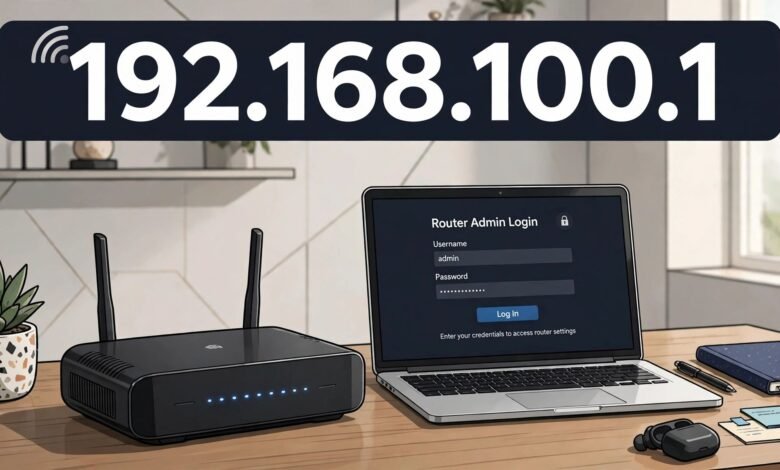
If you have ever tried to change your Wi-Fi password, rename your network, or check who is connected to your internet, you have probably been pointed toward an address like 192.168.100.1. It looks like a website, but it works a little differently. Typing it into your browser does not take you out onto the public internet. Instead, it opens a settings page that lives inside your own router, right there in your home or office.
That page is called the router admin panel, and it is where almost every useful network setting lives. The trouble is that most people only visit it once or twice, usually when something stops working, so the login process can feel unfamiliar. Add in a forgotten password or a page that refuses to load, and a five-minute job can turn into a frustrating evening.
This guide keeps things simple. You will learn what 192.168.100.1 actually is, how to log in step by step, where to find the default username and password for your router, and what to do when the page will not open. You will also find practical security steps worth taking once you are inside, because the default settings a router ships with are rarely the ones you want to keep.
What Is 192.168.100.1?
192.168.100.1 is a private IP address. That simply means it is reserved for use inside local networks, such as the network in your home, rather than on the public internet. Your router uses 192.168.100.1 as its own address on your local network, so when your phone or laptop asks where to find the router’s settings, this is the door it knocks on.
Not every router uses 192.168.100.1. Many use 192.168.1.1 or 192.168.0.1 instead, and some internet providers assign a different gateway address altogether. So if 192.168.100.1 does not work for you, it does not necessarily mean anything is broken. It may just mean your router uses a different address, and later in this guide you will learn how to find the right one for your network in under a minute.
It is also worth clearing up a common mix-up. The address you type here is not your Wi-Fi password, and it is not the password you use to get online. It is the address of the control panel. Once the panel opens, you will be asked for a separate admin username and password, which are used only to change router settings. Those two things, the Wi-Fi password and the admin password, do different jobs, and keeping them separate in your mind will save you a lot of confusion later.
Another point that trips people up is the format. You need to type 192.168.100.1 into the browser’s address bar, the long bar at the top where website addresses go, not into a search engine box. If you type it into a search engine, you will just get search results about the address, not the login page itself. And the address has to be exact: 192.168.100.1, with dots between the numbers and no extra characters, spaces, or letters.
How to Log In to 192.168.100.1
The login itself is straightforward once you know the order of steps. Start by connecting your device to the router’s network. You can use Wi-Fi or, for a more reliable connection, an Ethernet cable plugged directly into the router. A wired connection is especially helpful when you are troubleshooting, because it rules out any Wi-Fi problem getting in the way.
Next, open any modern browser on that device, such as Chrome, Edge, Firefox, or Safari. Click into the address bar at the top, type http://192.168.100.1, and press Enter. Some browsers will add the http:// part for you if you just type the numbers, but typing it in full avoids any chance of the browser treating it as a search query.
If everything is working, a login screen should appear asking for a username and password. Enter the admin credentials for your router, which are often printed on a sticker on the bottom or back of the device, and click Log In or Sign In. You should then land on the router’s dashboard, sometimes called the admin panel, home page, or web interface, depending on the brand.
Take a moment to look around before changing anything. Most dashboards show the connection status, the network name, and the number of connected devices right on the first screen. Menus for wireless settings, security, and advanced options are usually listed down one side or across the top. If you only came to change one thing, like the Wi-Fi password, head straight for the wireless or WLAN section and ignore the rest for now. There is no need to explore every menu on your first visit, and changing a setting you do not understand is the fastest way to create a new problem.
One practical tip: if you are changing Wi-Fi settings, do it from a device connected by cable when you can. Changing the Wi-Fi name or password while connected over Wi-Fi will disconnect you the moment you save, which is normal but can look alarming if you are not expecting it. You will simply need to reconnect using the new details.
Default Username and Password for 192.168.100.1
This is where most people get stuck, because the default login is not the same on every router. The only reliable source is your own device. Check the sticker on the bottom or back of the router first. Many manufacturers print the default admin username and password there, along with the default Wi-Fi name and password and the router’s own IP address. If the sticker says the gateway is 192.168.100.1, you have confirmation that you are using the right address as well.
If there is no sticker, or it has worn off, a few combinations are commonly used as factory defaults. The list below gives the ones you are most likely to meet. Try them one at a time, and remember that passwords are case-sensitive:
- admin / admin
- admin / password
- admin / (blank, leave the field empty)
- user / user
- admin / 1234
Treat this list as a starting point, not a guarantee. Some routers use a unique password printed only on the device label, and some internet providers set their own credentials when they install the router. If none of the combinations above work and the label is missing, your provider’s support pages or the manual for your router model are the next places to check. Searching for your exact router model plus “default password” usually turns up the right answer faster than guessing.
A word of caution here: never trust a random website that claims to list the password for your specific router and asks you to download something or enter personal details to see it. The label on the device and the manufacturer’s own documentation are the safe sources. Anything else is an unnecessary risk.
What You Can Do Inside the Admin Panel
Once you are logged in, the admin panel gives you control over how your home network behaves. The most common reason people log in is to change the Wi-Fi name (SSID) or password. Both live in the wireless settings section, and changing them is usually a matter of typing the new values and saving. Just remember that every device in the house will need the new password afterwards, so it is worth doing at a quiet moment rather than in the middle of someone’s video call.
You can also see which devices are currently connected to your network. This is genuinely useful. If your internet feels slow, a quick look at the connected devices list will tell you whether an unfamiliar device is using your connection or whether a forgotten gadget, like an old tablet or a smart TV, is hogging bandwidth. Some routers let you block or pause a device from this same screen.
Other handy options include setting up a guest network, which gives visitors internet access without handing over your main Wi-Fi password, and parental controls, which can limit internet access for certain devices at certain times. Firmware updates live in the panel too, usually under administration or system settings, and keeping firmware up to date is one of the simplest security habits you can adopt. Advanced users may also use port forwarding or quality-of-service settings, but those are best left alone unless you have a specific reason, such as running a game server or prioritising video calls.
Why 192.168.100.1 Might Not Load
A page that refuses to load is the most common complaint with router logins, and it usually has a boring explanation. Work through these checks in order, and you will find the cause in most cases.
First, confirm you are connected to the right network. If your phone has switched to mobile data, or your laptop is still connected to a neighbour’s network or a VPN, the router’s address will not resolve. Turn off mobile data temporarily, disconnect any VPN, and make sure you are on your own home Wi-Fi or plugged in by cable.
Second, double-check what you typed. A single wrong digit, a comma instead of a dot, or an extra character typed into a search box instead of the address bar will all fail. Clear the address bar completely and type the address again, slowly.
Third, consider that your router may simply use a different gateway address. Try the other common ones, 192.168.1.1 and 192.168.0.1, and if neither works, find your actual gateway using the steps in the next section. This alone solves the problem for a surprising number of people, because the address they were given online does not match the router sitting in their living room.
Fourth, clear the browser’s cache or try a different browser, or a private or incognito window. A stored redirect or a stale cached page can make a perfectly good login page look broken. If the page loads in a private window, the problem was the cache, not the router.
Finally, restart the router. Unplug it, wait about thirty seconds, plug it back in, and give it a couple of minutes to fully come back online before trying again. This resolves temporary glitches more often than any other single step, and it costs nothing. If you have tried all of this and the page still will not load, try a different device, and if that fails too, contact your internet provider, because the router itself may need attention.
How to Find Your Router’s IP Address
If 192.168.100.1 is not your gateway, finding the right address takes less than a minute on any device. On Windows, open Command Prompt and type ipconfig, then look for the “Default Gateway” line under your active connection. On a Mac, open System Settings, go to Network, select your connection, and look for the router address in the details. On Android, open the Wi-Fi settings, tap your connected network, and look for the gateway or router entry. On an iPhone, go to Settings, then Wi-Fi, tap the information icon next to your network, and look for the router field.
Whatever address appears there is the one your device actually uses to reach the router, so type that into your browser instead. If it turns out to be 192.168.1.1 or something else entirely, that is perfectly normal. The steps in this guide still apply exactly the same way; only the address changes.
It is also worth noting that your router’s address can change if your provider updates your equipment or if someone has changed the router’s LAN settings. So if an address that used to work suddenly stops, checking the gateway again is a sensible first step before assuming the router is faulty.
Forgot Your Router Admin Password?
Forgetting the admin password is more common than forgetting the Wi-Fi password, because you use it so rarely. Start with the label on the router and the common defaults listed earlier. If you changed the password yourself at some point and cannot remember the new one, check whether you wrote it down anywhere safe, such as a password manager or the notebook where you keep household details. Many people find it in a password manager they had forgotten they used.
If nothing turns up, the last resort is a factory reset. Almost every router has a small reset button, usually recessed so you need a paperclip or pin to press it. Holding it for around ten seconds, while the router is powered on, restores the factory settings, including the default admin login. Be aware of what this means, though. A factory reset wipes your Wi-Fi name and password, any custom settings, and port forwarding rules, and you will need to set the router up again from scratch. It also briefly takes your internet offline. So treat it as a genuine last resort, not a first step, and only do it when you have time to reconfigure the network afterwards.
After a reset, log in with the default credentials from the label, then immediately set a new admin password and a new Wi-Fi password, and write both down somewhere safe. Doing this straight away avoids repeating the same problem in a few months’ time.
Security Tips After You Log In
Getting into the admin panel is only half the job. A few minutes spent on security now will save you far more trouble later, and none of these steps require technical knowledge.
Change the default admin password first. If you are still logging in with “admin” and “admin”, anyone who can reach your network and knows your router model can potentially do the same. Pick a strong, unique password and store it in a password manager. This single change is the most important security step in this whole guide.
Next, check your Wi-Fi security mode. In the wireless security settings, look for WPA2 or WPA3. If your router is still set to WEP or to an open network with no password, change it. WEP is outdated and can be cracked quickly, while an open network lets anyone nearby join. WPA2 is fine for most homes, and WPA3 is better if your router and devices support it.
Then, update the firmware if an update is available. Manufacturers release firmware updates to fix security flaws and improve stability, and an out-of-date router is an easy target. Some routers update automatically, but many need you to click a button in the administration section. While you are there, turn off remote management or remote access unless you specifically need it. Remote management lets the admin panel be reached from outside your home network, which is convenient in rare cases but widens the attack surface for everyone else.
Finally, consider a guest network for visitors and smart home gadgets. Keeping guests and internet-connected gadgets on a separate network from your main devices means that even if one of those devices is compromised, it does not have direct access to your computers and phones. It takes a few minutes to set up and then runs quietly in the background.
Common Mistakes to Avoid
A handful of mistakes account for most router login headaches, and all of them are easy to avoid once you know about them. The first is typing the address into a search engine instead of the address bar, which produces search results rather than a login page. The second is confusing the Wi-Fi password with the admin password; they are different credentials for different purposes, and entering one where the other is expected will always fail.
The third is changing advanced settings without understanding them. The admin panel contains options that can cut off your internet entirely if set incorrectly, so if a setting’s purpose is not clear, leave it alone and look it up first. The fourth is forgetting to save. Many router pages require you to click Apply or Save after making a change, and closing the tab without saving means the change never happened, which can be confusing when the old password still works.
The fifth mistake is not writing down new passwords. After changing the Wi-Fi or admin password, record it somewhere safe straight away. A password manager is ideal, but even a note kept in a safe place at home is better than relying on memory for a password you use twice a year.
Frequently Asked Questions
What is 192.168.100.1 used for?
It is a private IP address used by some routers as the address of their web-based admin panel. Typing it into a browser on a device connected to that router’s network opens the settings page where you can change Wi-Fi details, check connected devices, and manage security options.
Is 192.168.100.1 the same as my Wi-Fi password?
No. It is the address of the router’s settings page, not a password. Once the page opens, you still need a separate admin username and password to log in, and those are different from the password your devices use to join the Wi-Fi network.
What is the default username and password for 192.168.100.1?
There is no single universal default, because it varies by router brand and model. Common factory combinations include admin/admin and admin/password, but the most reliable source is the sticker on the bottom or back of your router, which usually prints the correct credentials for that exact device.
Why does 192.168.100.1 not open in my browser?
The most common reasons are that you are not connected to the router’s network, the address was typed into a search box instead of the address bar, or your router uses a different gateway address. Check your connection, retype the address carefully, and find your actual gateway address using the steps in this guide.
Can I log in to 192.168.100.1 from my phone?
Yes. As long as your phone is connected to the router’s Wi-Fi network, you can open a browser, type the address into the address bar, and log in exactly as you would on a computer. The panel may look slightly different on a small screen, but the settings are the same.
What happens if I reset my router?
A factory reset restores all settings to how they were when the router left the factory. That includes the default admin login, but it also erases your Wi-Fi name and password and any custom settings, so you will need to set the network up again afterwards.
Is it safe to log in to 192.168.100.1?
Yes, when you do it on your own network. The address is private, meaning it only works from inside your local network and is not reachable from the public internet under normal settings. For extra safety, change the default admin password and keep remote management turned off unless you need it.
Final Thoughts
Logging in to 192.168.100.1 is not difficult once you know the pieces: the right address, the right place to type it, and the credentials printed on your router. Most problems come down to one of those three things, and most are fixed in minutes with the checks in this guide. Once you are inside, take the extra few minutes to change the default admin password, confirm your Wi-Fi is using modern security, and check for a firmware update. Those small steps turn a quick settings change into a genuinely more secure home network, and they mean the next time you need the admin panel, you will know exactly where to find it and how to get in.
Read Also: 192.168.0..104 Router Login and Admin Fix (2026 Guide)