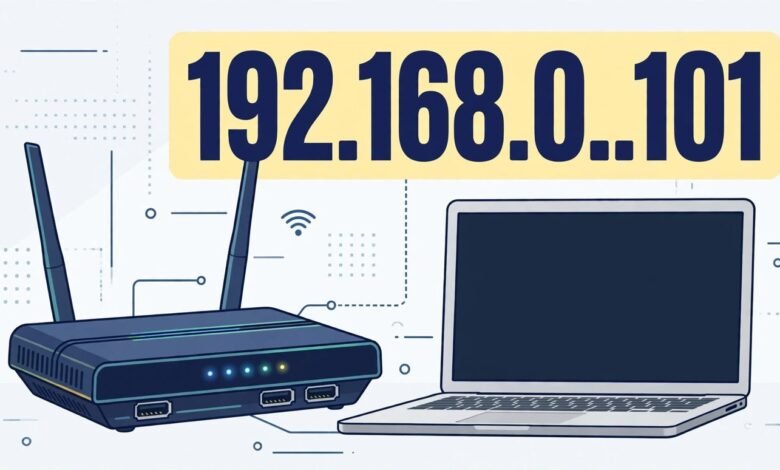
If you typed 192.168.0..101 into your browser and got an error page, a search results page, or a message telling you the address could not be reached, there is a simple explanation: that address does not exist. Not because your router is broken, and not because your internet is down, but because the address itself is written incorrectly. Look closely and you will spot it — there are two dots in a row between the 0 and the 101.
The address you almost certainly meant is 192.168.0.101, with a single dot in each gap. That one is a perfectly normal private IP address, the kind used by devices on home and office networks all over the world. Remove the extra dot, and in many cases everything starts working exactly as you expected.
This guide explains why the double-dot version fails, what private addresses like 192.168.0.101 actually are, how to open the corrected address, what you might find when you do, and what to try when it still does not load.
Why 192.168.0..101 Does Not Work
An IPv4 address has a strict shape. It is made up of four groups of numbers, called octets, separated by exactly three single dots. Each group must contain a number between 0 and 255.
192.168.0..101 breaks that rule once you count the pieces. Splitting it at the dots gives you “192”, “168”, “0”, an empty gap, and “101” — five fragments instead of four, one of them completely empty. Browsers, routers, and operating systems all parse addresses the same way, and an empty fragment is not a number, so the whole thing gets rejected before it ever touches your network.
This is also why the error you see tends to look different from a normal “site cannot be reached” message. When an address is valid but nothing answers at it, your browser waits, times out, and tells you the connection failed. When an address is malformed, the browser often does not even try — it may treat your input as a search query instead, or show an invalid-address error straight away.
It is worth noting that this kind of typo is extremely easy to make. On a phone keyboard, the dot key sits right next to other keys, and a double-tap is all it takes. Nobody notices a second dot at a glance, which is exactly why this particular mistake is so common.
The Address You Probably Meant: 192.168.0.101
Take away the extra dot and you get 192.168.0.101: four groups, three dots, every number in range. It belongs to a family of addresses reserved for private networks, which means it is used inside homes and offices rather than on the public internet. Your router hands out addresses like this to the devices connected to it — your phone, laptop, smart TV, printer, and anything else on your Wi-Fi.
Whether anything actually lives at 192.168.0.101 on your network depends entirely on how your router has assigned addresses. On many networks, the router itself sits at an address ending in .1, such as 192.168.0.1, and hands out the rest in order. Under that pattern, 192.168.0.101 would be a device that joined the network fairly late in the sequence, or one that was given a fixed address by whoever set the network up.
On other networks, the numbering starts elsewhere entirely — 192.168.1.x is at least as common as 192.168.0.x — and in that case 192.168.0.101 may belong to nothing at all. That is not a fault. Private addresses are only meaningful inside the network that uses them.
What Private IP Addresses Are
Every device on a network needs an address so that data knows where to go, much like every house on a street needs a number so post can be delivered. Public IP addresses identify your whole household to the internet at large; private addresses identify individual devices inside your household to each other. Your router sits between the two worlds, translating traffic as it passes.
Three ranges of addresses are set aside for private use and never assigned on the public internet. The 10.0.0.0 – 10.255.255.255 range is used for large networks and some ISP-supplied routers. The 172.16.0.0 – 172.31.255.255 range is used for medium and business networks. The 192.168.0.0 – 192.168.255.255 range is used for most home routers, including 192.168.0.1, 192.168.0.101, and 192.168.1.1.
The 192.168 range is by far the most common in homes. If your own network uses a different range, addresses in the 192.168 range simply will not lead anywhere on your network, and that is expected behaviour rather than a problem to fix.
One practical consequence is worth understanding: because private addresses are reused in millions of homes, typing 192.168.0.101 into your browser only ever looks inside your own network. It cannot accidentally take you to someone else’s device, and nobody on the internet can reach your devices by typing your private address into their browser.
Valid and Invalid Forms at a Glance
Small typing errors produce addresses that look almost right but fail completely.
| Status | Address | Note |
|---|---|---|
| Valid | 192.168.0.101 | a valid private address; loads a device page if one exists at that address on your network. |
| Invalid | 192.168.0..101 | empty fragment between the dots; browser rejects it or searches instead. |
| Invalid | 192.168.0.101 with a trailing dot | most browsers reject it. |
| Invalid | 192.168.0,101 | comma instead of a dot; treated as a search term. |
| Invalid | 192.168.0.1010 | last group exceeds 255. |
| Invalid | 192.168.0.1O1 | letter O instead of zero; not a number at all. |
A capital letter O and the digit zero look nearly identical in many fonts, and an address that is one digit too long can pass a casual glance. If you copied the address from a handwritten note or a screenshot, retyping it carefully — digit by digit — often solves the problem on its own.
How to Correct the Typo and Open 192.168.0.101
Fixing this takes less than a minute. The steps below assume you are on the same network as the device you are trying to reach, which is essential: private addresses only work from inside their own network.
- Click into your browser’s address bar and delete everything in it. Do not edit the existing text in place, where the extra dot can hide.
- Type 192.168.0.101 slowly, checking each dot as you go: 192, dot, 168, dot, 0, dot, 101.
- Press Enter. Do not add “www”, “http://”, or “.com” — none of those belong in an IP address.
- Wait a few seconds. If a login page appears, you have reached a device on your network. If the browser times out, nothing on your network is answering at that address, which is also useful information.
If your browser keeps turning the address into a search query, that usually means something in what you typed is still not a valid address, or that your browser is set to search from the address bar when it does not recognise the input. Typing it fresh, exactly as above, normally clears this up.
What You Might Find at 192.168.0.101
There are three realistic outcomes, and all of them are normal.
The first is a login page. Some device on your network — a router, an access point, a network storage box, or a camera — has been given this address and serves a web-based control panel. The login details for such devices vary by manufacturer and model, and they are usually printed on a sticker on the device itself or in its manual. Be cautious about advice that claims one universal username and password works everywhere; defaults differ, many devices force you to change them on first setup, and guessing repeatedly can lock you out.
The second outcome is a page that loads but shows nothing you recognise, or a plain page from a device you did not expect — a printer’s status page, for instance.
The third outcome is nothing at all: the browser spins and eventually reports that the address cannot be reached. This means no device on your network currently holds 192.168.0.101. It does not mean your network is broken, and it does not mean the address is wrong in principle — it just is not assigned right now.
Troubleshooting When the Corrected Address Still Does Not Load
If 192.168.0.101 is typed correctly and still does not respond, work through these checks in order:
- Are you on the right network? Confirm your device is connected to the Wi-Fi or cable network you mean, not a neighbour’s network or mobile data.
- Is the address in use here? Check your router’s connected-devices list, if you can reach it.
- What is your gateway? Look up your device’s gateway address; if it is 192.168.1.1, your network uses a different range.
- Try another device on the same network.
- Restart the router: power it off for about 30 seconds, then back on.
- Clear the browser cache, or try a private/incognito window.
The network check trips up more people than any other step. If your phone has silently switched to mobile data, or your laptop has joined a nearby network with a similar name, then 192.168.0.101 is being looked up on the wrong network entirely.
The gateway check is the most informative single step. Your gateway address is your router’s address on your local network. If it turns out to be 192.168.1.1, then your network lives in the 192.168.1.x range, and 192.168.0.101 is simply not part of it.
A factory reset of a router is sometimes suggested online as a fix for login problems, but treat it as a genuine last resort. Resetting wipes your Wi-Fi name and password, your internet settings, and any custom configuration, and you may need your internet provider’s details to get back online. For a simple mistyped address, it is never necessary.
How to Find Your Own Device’s IP Address
If you are trying to reach a specific device and you are not sure of its address, finding its current address directly is more reliable than guessing. On Windows, open Command Prompt and type ipconfig, then press Enter. Look for the “IPv4 Address” line under your active connection and the “Default Gateway” line, which is your router’s address. On a Mac, open System Settings, go to Network, select your connection, and click Details. On an iPhone, go to Settings, then Wi-Fi, and tap the information icon next to your connected network. On Android, the path varies slightly by maker, but it is generally under Settings, then Network or Connections, then Wi-Fi, then your connected network’s details.
Your own device’s address also tells you something useful about your network’s range. If your phone’s address is 192.168.0.47, your network uses the 192.168.0.x range, and 192.168.0.101 is at least a plausible address on it. If your phone’s address is 192.168.1.23, your network uses a different range.
Most routers also show a list of connected devices with their addresses, usually under a heading like “Attached Devices”, “Clients”, or “DHCP List” in the router’s own settings pages.
Frequently Asked Questions
Is 192.168.0..101 a real IP address? No. The double dot creates an empty section between two dots, which is not a number, so the address fails the basic format rules for IPv4 addresses. It is a typo, not a special kind of address, and no device or router will accept it.
What is the correct version of 192.168.0..101? Almost certainly 192.168.0.101 — the same digits with one dot removed. That is a valid private address in the range used by many home networks.
Why does my browser search for it instead of opening a page? Browsers treat input they cannot parse as an address as a search query instead. A double dot, a comma, or a stray character is enough to trigger this.
Can someone else see my devices if I type this address? No. Private addresses like 192.168.0.101 only work inside the network that uses them.
What if 192.168.0.101 asks for a username and password I do not know? Check the sticker on the device itself or its manual first, since login details vary by maker and model.
Does 192.168.0.101 work on mobile data? No. Mobile data puts your phone on your carrier’s network, not your home network, so your home’s private addresses are not reachable. Connect to your home Wi-Fi first, then try the address again.
Conclusion
The story of 192.168.0..101 is short: an extra dot made a valid address invalid, and removing it restores the address you meant. The corrected address, 192.168.0.101, is a normal private address that may lead to a device on your network or to nothing at all, depending on how your router assigns addresses. Neither outcome is a fault, and both are easy to investigate — check you are on the right network, confirm your gateway address to see which range your network uses, and look at your router’s connected-devices list if you need to find a specific device.
Small typos cause a disproportionate share of network frustration, precisely because the address looks right at a glance. A slow retype, digit by digit, is often the entire fix.
Read Also: 192.168.8.1 Router Admin Login Step-by-Step (2026 Guide)