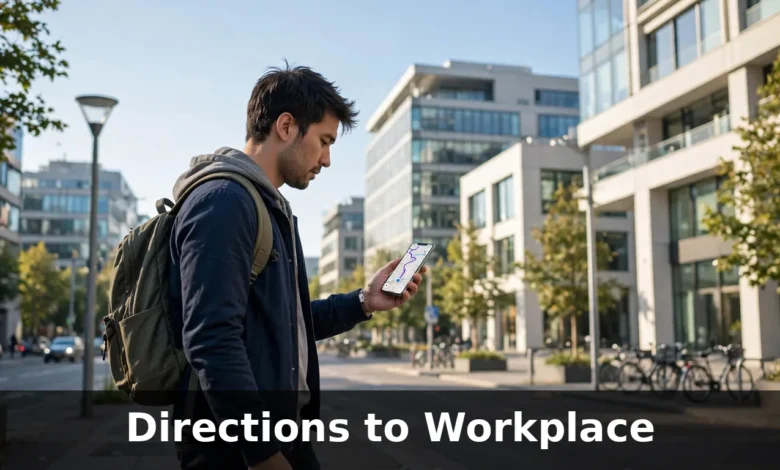
Getting to work should be the easiest part of your day, yet for a lot of people it is the part that causes the most stress. A new job, a new office building, a meeting at a different branch, or even a road closure on a route you have driven a hundred times can turn a simple journey into a rushed, confusing morning. That is usually when people type “directions to workplace” into their phone and hope for a clear answer.
The good news is that getting reliable directions to your workplace is easier than it has ever been. Your phone already knows how to do most of the work. The trick is knowing which tool to use, how to set it up once so you never have to think about it again, and what to do when the first route it suggests is not the best one for you.
This guide walks through all of it in plain language: finding directions with Google Maps and Apple Maps, driving, taking the bus or train, walking or cycling, saving your office address for a one-tap commute, sharing directions with someone else, and handling the days when something goes wrong.
More Information: What Is the Milky Way Galaxy? A Simple Explanation
What “Directions to Workplace” Means
When someone searches for directions to their workplace, they are usually asking for one of a few things. Sometimes they want turn-by-turn instructions from where they are right now to their office. Sometimes they want to plan a route in advance, check how long it will take, and work out what time they need to leave. And sometimes they are not the one travelling at all — they need to send clear directions to a colleague, a client, or a visitor.
The search can also mean slightly different things depending on the situation. A person starting a new job wants to know the exact entrance, the nearest car park, and whether the building is easy to find. A delivery driver or a visitor wants the full address and the best approach road. A regular commuter wants the fastest route today, taking traffic into account, rather than the shortest route on a map.
It helps to be specific when you ask for directions. A workplace name alone is often not enough, because many companies share a name or have more than one office in the same city. The full street address, including the postcode or zip code, gives your map app something exact to work with. If you only have the company name, check the address on the company’s website, your offer letter, or the email from your manager before you set off. A few minutes spent confirming the address at home is far better than discovering you have gone to the wrong branch halfway through your journey.
You should also think about how you will travel before you pick a route. Driving directions, bus directions, and walking directions to the same office can look completely different. A route that is perfect in a car might send a pedestrian down a busy road with no pavement, while a walking route might cut through a park that cars cannot use. Tell your map app how you plan to travel, and it will give you directions that actually fit.
How to Get Directions to Your Workplace with Google Maps
Google Maps is the tool most people reach for first, and for everyday commuting it does the job well. Here is how to use it properly for your workplace.
First, open Google Maps on your phone or computer and type your workplace address or company name into the search bar. When the right place appears, tap on it to open its details. Check that the pin is in the right place on the map and that the address matches the one you were given. If the pin sits on the wrong building, tap the place name, look for the option to suggest an edit, and correct it — or simply search using the full street address instead.
Next, tap Directions. Your current location will usually be filled in as the starting point. If you are planning from home, you can change the starting point to your home address. Then choose your way of travelling: car, public transport, walking, or cycling. Google Maps will show you one main route and one or two alternatives, with the expected travel time for each.
Before you pick a route, look at the details. For driving, check the traffic conditions and any road closures shown on the map. For public transport, check the departure times, the number of changes, and how far you will need to walk between stops. For walking and cycling, check the total distance and whether the route uses quiet streets or main roads.
One feature that is easy to miss is the option to set a departure or arrival time. Tap the three dots or the options menu on the directions screen and choose either “Depart at” or “Arrive by”. If you need to be at your desk by 9 in the morning, set “Arrive by 9:00 AM” and Google Maps will tell you when to leave, based on typical traffic or timetables for that time of day. This is far more useful than checking the route at midnight and assuming the journey will take the same amount of time during rush hour.
When you are ready to travel, tap Start to begin turn-by-turn navigation. Keep your phone somewhere you can hear it, and let the voice directions guide you. If you miss a turn, do not panic — the app will recalculate the route within seconds. It is also worth checking the route once more before you leave on your first day, because roadworks and closures can appear overnight.
Saving Your Workplace in Google Maps
If you use Google Maps regularly, saving your workplace address saves you from typing it in every morning. Tap your profile picture, go to Settings, then tap “Edit home or work”. Add your office address under Work. From then on, you can simply type “work” into the search bar, or tap the Work shortcut, and directions will appear straight away.
You can also create a daily reminder. On Android, the Google Maps widget can show your commute time on your home screen. On iPhone, you can ask for directions to work through the search bar or a shortcut. The idea is simple: set it up once, and the morning routine takes care of itself.
Apple Maps and Other Map Apps
If you use an iPhone, Apple Maps is already on your phone and works in a very similar way. Type your workplace address into the search bar, tap the result, and tap Directions. Choose driving, walking, cycling, or transit, and Apple Maps will show you the route with an estimated arrival time.
Apple Maps has improved a great deal for commuting. In many cities it shows detailed transit directions, including which platform to use and where to change trains. It also gives lane guidance while driving, which helps when you are approaching a complicated junction near an office park or a city-centre building.
One useful Apple Maps feature is the ability to save a place as a favourite. Once your workplace is saved, you can get directions to it with two taps. Go to the search bar, find your workplace, swipe up on the place card, and tap Add to Favourites. You can also add your work address in your contact card, which lets Siri give you directions when you say “Give me directions to work”.
Other map apps are worth knowing about too. Waze is popular with drivers because it uses live reports from other drivers about traffic jams, accidents, and road closures. It can be a good second opinion when Google Maps shows heavy traffic and you want to know whether there is a quicker way around it. Citymapper is another good choice if you live in a large city, because it combines buses, trains, trams, walking, and cycling into one clear plan, including the cost of the journey.
No single app is right for everyone. The best approach is to try your usual route on two different apps for a few days and see which one gives you the most accurate arrival times. Many commuters end up using one app for driving and another for public transport, and there is nothing wrong with that.
Directions to Work by Car
Driving to work gives you control over when you leave, but it also means dealing with traffic, parking, and fuel costs. Getting the directions right matters more in a car, because a wrong turn can add ten minutes while you find somewhere to turn around.
Start by checking the route the night before, especially if you are going to a new office. Look at where the route ends. Does it take you to the front of the building, to a car park at the back, or to a drop-off point on a different street? Office buildings in business parks often have more than one entrance, and the one your map app picks may not be the one staff normally use. If you can, ask a colleague which entrance to use and which car park is for staff.
Parking deserves its own thought. Some workplaces have free staff parking, some have a limited number of spaces that fill up early, and some have no parking at all. Check before your first day whether you need a permit, whether there is a charge, and where the nearest public car park is if the staff car park is full. Arriving to find nowhere to park is one of the most common reasons people are late on their first day.
Traffic is the other big factor. The same drive can take twenty minutes on a quiet Sunday and fifty minutes on a Monday morning. When you check directions, always look at the travel time for the time you will actually be travelling, not the time you happen to be checking. If your map app offers a “leave by” time for your arrival time, use it. Over your first week, note how long the journey really takes, and adjust your departure time until you find a routine that leaves you a comfortable buffer.
It also helps to have a backup route in mind. Road closures, accidents, and roadworks can close your usual road without warning. Before your first week is over, look at the map and find one alternative way to the office — a different main road, or a route that avoids the busiest junction. You may never need it, but knowing it exists takes a lot of stress out of a morning when your usual route is blocked.
Finally, think about fuel and running costs if you are driving every day. A slightly longer route on a main road can sometimes be cheaper and less stressful than a shorter route through stop-start traffic. Over a month of commuting, that difference adds up.
Getting to Work by Bus, Train or Metro
Public transport is the easiest option for many commuters, especially in towns and cities where parking is expensive or hard to find. The key is to plan the whole journey, not just the train or bus part.
When you search for directions by public transport, your map app will show you the full journey: the walk to the stop or station, the service to catch, any changes, and the walk from the final stop to your office. Read all of it. A journey that looks like a twenty-minute train ride can become a forty-five-minute trip once you add the walks at either end.
Check the timetable carefully. Some services run every few minutes during rush hour and only once an hour at other times. If you miss one bus, will the next one come in five minutes or fifty? That answer changes how early you need to leave. It is also worth checking whether your route has a direct service or whether you need to change. A direct bus that takes slightly longer can be less stressful than a faster journey with a tight change.
Buy or set up your ticket before your first day. Many cities now use contactless payment or a travel card you can top up in advance. Find out which one your route uses, and make sure you have it ready. Standing at a ticket machine working out how it works while a bus is waiting is not how anyone wants to start a Monday.
If your journey involves more than one type of transport, keep the connection times realistic. A timetable might say you have three minutes to change trains, but if the change involves a long walk between platforms, you will miss it. Give yourself a little extra time, especially in your first week, until you know the stations and stops properly.
Delays happen, and it helps to have a plan for them. Save the website or app for your local transport provider on your phone, and check it before you leave. If your usual service is cancelled, you will see the alternative while you are still at home, rather than discovering it at the station.
Walking and Cycling to Work
Walking or cycling to work can be the most pleasant way to commute, and it is free, but the directions need a little more care than a driving route. A map app will happily send a pedestrian down the shortest path, which may include a busy dual carriageway, a steep hill, or an unlit path that feels fine in daylight but not on a dark winter morning.
When you check a walking route, look at more than the distance. Look at the streets it uses. Are there pavements the whole way? Does it cross any major roads, and if so, is there a crossing? Is there a quieter parallel street that adds two minutes but is much nicer to walk? Many map apps let you drag the route to use a different street, and that small change can make the walk far more enjoyable.
For cycling, the same thinking applies. Look for cycle lanes and quiet roads rather than the fastest route. Check whether your workplace has somewhere safe to leave a bike, and whether there is a shower or a place to change. If you are new to cycling to work, try the route on a weekend first, when there is less traffic and no pressure to arrive on time. You will learn where the tricky junctions are and how long the ride really takes.
Distance matters too. As a rough guide, most people find a walk of up to about thirty minutes comfortable for a daily commute, and a cycle ride of up to about forty-five minutes manageable. Beyond that, you may want to combine walking or cycling with public transport — for example, cycling to the station and taking the train the rest of the way. Your map app can usually plan a mixed journey like this if you ask it to.
Whatever you choose, wear something visible and carry what you need in a comfortable bag. A commute you enjoy is a commute you will stick with.
How to Save Your Workplace Address and Set Up a Daily Commute
Saving your workplace address once is a small job that pays you back every single morning. You will no longer need to type the address, remember the postcode, or worry about picking the wrong branch from a list of similar names.
In Google Maps, save the address under Work as described earlier. In Apple Maps, save it as a favourite or add it to your contact card. In Waze, you can save it under Work in the settings, and the app will learn your usual departure time and start suggesting the best route before you even ask.
Once the address is saved, set up a routine around it. Decide on a target arrival time and work backwards. If you need to be at your desk at nine, and the journey takes forty minutes, you need to leave at twenty past eight at the latest — and a little earlier still if you want a buffer for traffic. Put a reminder on your phone for your departure time, not just your start time. Many people set an alarm for when they need to leave the house, and that single habit prevents more late arrivals than any map app.
If your phone supports it, turn on commute notifications. Both Google Maps and Apple Maps can send you a notification telling you how long the journey will take right now and whether you should leave earlier than usual because of traffic. That one message, seen while you are still at home, can be the difference between a calm arrival and a rushed one.
It is also worth saving the address in more than one place. Keep it in your map app, in your contacts, and in a note on your phone. If you change phones or your app resets, you will not be stuck trying to remember the exact building number on a busy morning.
More Information: Courtly Lover’s Labrys: Meaning, History and Symbolism
Sharing Directions with Colleagues and Visitors
There will be times when you need to give directions to your workplace rather than follow them yourself. A new starter, a client visiting for a meeting, or a delivery driver will all need clear instructions, and the quality of those instructions reflects on you and your workplace.
The simplest way to share directions is to send a link from your map app. In Google Maps, open your workplace, tap Share, and send the link by message or email. The person who receives it can tap it and get turn-by-turn directions from wherever they are. Apple Maps has a similar share option. A shared link is better than a typed-out address, because it removes the risk of a typing mistake.
If you need to write directions out, keep them simple and specific. Start with the full address, including the postcode. Then add the nearest landmark or the most useful approach — for example, “Turn left at the petrol station, and our building is the third on the right.” Add practical details: which entrance to use, where to park, whether they need to report to reception, and a phone number to call if they get lost.
Think about who you are writing for. A visitor arriving by car needs parking information. A visitor arriving by train needs the walking route from the station and how long it takes. A visitor arriving by taxi just needs the address and the building name. One set of directions does not fit everyone, so add the detail that matters for the way they are travelling.
If your workplace is hard to find, say so honestly. Many offices sit inside business parks, behind other buildings, or on streets where the numbers are confusing. A short note such as “The entrance is at the back of the building, not the side facing the main road” can save a visitor twenty minutes of driving around. If there is a photo of the building entrance on your company website, link to it or attach it to your message.
Your First Day: How to Arrive Without Stress
Your first day at a new job is the one day when directions matter most. You do not know the building, the area, or the traffic yet, and you want to arrive calm rather than flustered. A little preparation the day before makes all the difference.
Do a trial run if you can. If your new office is close enough, drive, walk, or take public transport there on the weekend before you start. You will learn where the entrance is, where to park, and how long the journey really takes, without any pressure. If a trial run is not possible, use Street View in Google Maps to look at the building and the streets around it. Seeing the entrance in advance makes it much easier to recognise when you arrive.
On the night before, check the route once more and look for any closures or roadworks. Lay out what you need, charge your phone, and save the office address and your manager’s phone number where you can reach them quickly. Set two alarms: one to wake up, and one to remind you when to leave.
On the morning itself, leave earlier than you think you need to. Aim to arrive fifteen to twenty minutes early. That buffer covers slow traffic, a wrong turn, or a few minutes spent finding the right entrance. If you arrive early, you can have a coffee, check your messages, and walk in relaxed. Arriving early is never a problem; arriving late on your first day is a first impression you cannot undo.
When you arrive, take a note of what worked. Which entrance did you use? Where did you park? How long did the journey actually take? Save that information in your phone. By the end of your first week, you will have a routine that feels easy, and directions to work will be something you barely think about.
When Directions Go Wrong: Troubleshooting
Even with the best preparation, directions sometimes go wrong. The address is mistyped, the map pin is in the wrong place, a road is closed, or your phone loses signal at the worst moment. Knowing what to do in each case saves time and stress.
If the address looks wrong, stop and check it before you go further. Compare the address in your map app with the one on your offer letter, your company website, or the email from your manager. A single wrong digit in a postcode can send you to a different street or a different town. If the building name brings up several results, use the full street address instead of the name, and check the town or city as well.
If a road is closed, let your map app recalculate the route rather than guessing an alternative yourself. Modern map apps receive closure information quickly, and they will usually find a way around it. If the app keeps sending you back to the closed road, close the navigation and start it again, or try a different app for a second opinion.
If you lose signal or your phone battery is low, offline maps are your safety net. Google Maps lets you download an area of the map in advance so you can navigate without a connection. Before a journey to an unfamiliar area, download the map for that area while you are on Wi-Fi. It takes a minute, and it can rescue a journey where the signal drops.
If you arrive and cannot find the entrance, do not keep driving around the block. Park somewhere safe, call the office, and ask for guidance. Reception staff give these directions every day, and they will know the simplest way to explain it. It is far better to ask than to arrive late after circling the same streets.
Finally, if your map app regularly sends you to the wrong place, report the problem. Both Google Maps and Apple Maps let you suggest a correction to a place’s location or address. It may take a while to be updated, but your report helps the next person who searches for the same workplace.
Frequently Asked Questions
How do I get directions to my workplace?
Open Google Maps or Apple Maps, type your full workplace address into the search bar, tap Directions, and choose how you are travelling — by car, public transport, walking, or cycling. The app will show you the route, the travel time, and turn-by-turn navigation. Save the address under Work so you can get directions with one tap in future.
How can I find the fastest route to work?
Check your route at the time you will actually travel, and use the “Arrive by” option to see when you need to leave. Compare the main route with the alternatives your map app suggests, and check live traffic before you set off. Over your first week, note the real journey time and adjust your departure time until it fits.
What is the best app for directions to work?
Google Maps works well for most people, and Apple Maps is a strong choice on iPhone. Waze is useful for drivers who want live traffic reports from other drivers, and Citymapper is excellent for public transport in large cities. Try two apps on your usual route and keep the one that gives you the most accurate arrival times.
How do I save my workplace location on Google Maps?
Tap your profile picture, go to Settings, then tap “Edit home or work” and add your office address under Work. After that, you can type “work” in the search bar or tap the Work shortcut to get directions instantly. You can also save the address as a favourite in Apple Maps.
What should I do if Google Maps shows the wrong workplace address?
First, check the address against your offer letter or company website — a wrong postcode or a similar company name is the most common cause. Search using the full street address instead of the company name. If the map pin itself is wrong, use the “Suggest an edit” option to report the correct location.
How early should I leave for work on my first day?
Leave early enough to arrive fifteen to twenty minutes before your start time. Check the route the night before, allow extra time for traffic or finding the entrance, and do a trial run or check Street View in advance if you can. Arriving early leaves you calm and prepared, while arriving late is hard to recover from.
Conclusion
Getting directions to your workplace is a small task, but getting it right shapes your whole working day. Save your office address once, check the route for the time you will actually travel, and give yourself a buffer — especially on your first day. Know your backup route, keep an offline map ready for unfamiliar areas, and do not be afraid to ask for help when a building is hard to find.
Do those few things, and the journey to work stops being something to worry about. It becomes a routine you barely notice, leaving you free to focus on the work itself.
Read Also: United Bank Login: How to Access Your Account Online