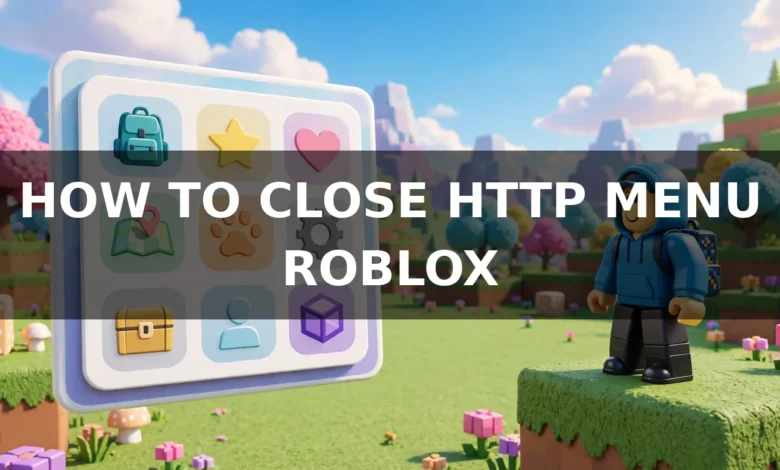
How to close HTTP menu Roblox is the question this guide answers for players on PC, mobile and console, and for developers building a custom menu.
You are in the middle of a game, you opened a menu, and now it will not go away. The screen is covered, your character is standing still, and every click seems to do nothing useful. If you searched for how to close the HTTP menu in Roblox, you are in the right place, and the fix is usually much simpler than it feels in the moment.
Here is the honest part first, because it saves you a lot of wasted searching. There is no built-in feature in Roblox that is officially called the “HTTP menu.” You will not find a button, a setting, or a help page with that exact name inside the Roblox app.
When players use this phrase, they almost always mean one of two things: the normal in-game menu that opens when you press Esc on a computer, or a custom menu that a game’s developer built into that particular game, such as a shop menu, a settings panel, or a start screen. Both can be closed, but the method is different for each one, which is why a single vague answer never seems to work for everyone.
This guide covers both sides. First, the player side: how to close the standard Roblox menu on PC, mobile, Xbox, and PlayStation, how to get out of the Developer Console, and what to do when a menu seems stuck. Then the developer side: the exact Luau code you need to add a working close button to your own game’s menu, plus a keyboard shortcut that lets players hide it and bring it back. Everything here uses controls and features that actually exist in Roblox, so you can follow the steps as written without guessing.
What Does “HTTP Menu” Mean in Roblox?
Before fixing anything, it helps to know which menu you are actually looking at, because Roblox has several different menus and they do not all close the same way.
The most common one is the main in-game menu, sometimes called the Esc menu or the pause menu. On a computer, pressing the Esc key opens it. It shows buttons such as Resume, Reset Character, Leave, Settings, and Help. It also shows the list of players in the server and, depending on the game, extra options the developer added. This is the menu most people mean when they say “HTTP menu,” even though that is not its real name.
The second possibility is a custom menu built by the developer of the game you are playing. These are everywhere in Roblox. A shop menu, an inventory screen, a settings panel, a team selection screen, or a welcome screen that appears when you join are all custom menus. They are made with Roblox’s user interface tools, and each one has its own close button, if the developer added one. Some have a clear X in the corner. Some close when you press a key. Some only close when you click a specific button, and a few are designed to stay open until you make a choice, such as picking a team.
The third possibility is the Developer Console, which opens with the F9 key on PC. It shows logs and performance information, and it looks very different from the normal menu. Players sometimes open it by accident and then cannot work out how to dismiss it.
There is one more thing worth saying plainly. The word HTTP in this search phrase most likely comes from a misunderstanding, a misheard term, or a translation issue, possibly mixed up with the in-game menu or with HttpService, which is a behind-the-scenes Roblox service that developers use to let their games talk to websites. HttpService has no menu that players can open or close. You cannot fix this problem by changing any HTTP setting, because there is no such setting in the Roblox app. The menu on your screen is either the standard Esc menu or a custom menu, and both are covered below.
If you are a player, start with the section for your device. If you are a developer whose own menu will not close, skip to the developer section further down.
How to Close HTTP Menu Roblox on PC
On a computer, closing the standard Roblox menu takes one key press in almost every case. The menu is designed to toggle open and closed, so the same key that opened it usually closes it.
Press the Esc key once. If the menu is open, this closes it and returns you straight to the game. That is the whole fix for most players, and it is worth trying before anything else. If you pressed Esc to open the menu, press Esc again to close it. Do not hold the key down; a single quick press is enough.
If Esc does not work, look for the Resume button. When the Esc menu is open, the Resume option is usually the first and most obvious button, often at the top of the menu or in the centre of the screen. Click it, and the menu closes immediately. There may also be a small X button in the corner of the menu window. Clicking that X does the same thing.
Some games replace the standard menu layout with their own design, so the Resume button may sit in a different place or use different wording, such as “Continue” or “Back to Game.” The idea is the same: look for the option that returns you to the game rather than one that changes a setting or leaves the server.
Two keyboard shortcuts inside the Esc menu are worth knowing, although you should use them carefully because they do more than close the menu. Pressing L while the menu is open leaves the game entirely, and pressing R respawns your character, which resets your position and health in most games. Neither of these is a way to simply close the menu, but players often press them by accident while trying to escape a stuck screen, so it helps to know what they do. If you only want to close the menu and keep playing, stick to Esc or the Resume button.
If the menu still will not close after pressing Esc and clicking Resume, try clicking once on the game world behind the menu, then press Esc again. Occasionally the game window loses focus, especially if you clicked outside the Roblox window or pressed Alt and Tab to switch to another program. Clicking back into the game window restores focus, and the Esc key starts working again. On a laptop, also check that your Esc key itself is working by pressing it in another program, because a stuck or unresponsive key can look exactly like a Roblox problem.
As a last resort on PC, you can leave and rejoin the game. This is not elegant, but it always works. Click Leave in the menu, or close the Roblox window entirely, then launch the game again from the Roblox app or website. You will lose your place in that particular server, and in some games you may lose unsaved progress, so treat this as a fallback rather than a first step.
How to Close HTTP Menu Roblox on Mobile
On a phone or tablet, there is no Esc key, so the menu works with touch controls instead. The steps are just as quick once you know where the buttons are.
Tap the Roblox icon in the top-left corner of the screen to open the menu. This is the small Roblox logo button that sits in the corner during play. Tapping it again, or tapping the Resume button inside the menu, closes the menu and returns you to the game. On most phones, the Resume button is large and clearly labelled, near the top of the menu panel.
Some menus on mobile also have an X button in the top corner of the panel. Tapping it closes the menu in the same way. If the menu you are looking at is a custom menu from the game itself, such as a shop or inventory screen, look for its own X or close button, which is usually in one of the top corners of that panel. Developers place it there by convention, so the top-right corner is always a good first place to look.
If tapping Resume or the X does nothing, check whether the game is asking you to do something first. A few custom menus cannot be closed until you make a selection, for example choosing a team, confirming a purchase, or pressing a “Play” button. In that case the menu is not broken; it is waiting for input. Look for the most prominent button inside the panel and read what it says before assuming the game is frozen.
Touch problems can also make a menu feel stuck when it is not. If your screen has a protector that interferes with touches near the edge, or if your fingers are wet, taps may not register properly. Try tapping the Resume button firmly in its centre. If the whole game seems frozen, with nothing responding at all, close the Roblox app completely and reopen it. On most phones you do this by swiping the app away from the recent apps list, then launching Roblox again and rejoining the game.
How to Close HTTP Menu Roblox on Console
Console players control Roblox with a controller, so the buttons are different, but the idea is identical: open the menu with one button, close it with the same button or with the Resume option.
On Xbox, press the Menu button on your controller, which is the small button with three horizontal lines, to the right of the Xbox button. This opens the Roblox menu. Pressing the same button again, or selecting Resume from the menu, closes it and takes you back to the game. If you are using the on-screen navigation, move to the Resume option with the left stick or directional pad and press A to select it.
On PlayStation 4 and PlayStation 5, the menu is opened from the touch pad. Pressing the touch pad brings up the game menu, which players sometimes call the Game Toggle Menu. Pressing the touch pad again, or choosing the Resume option from the menu, closes it. The exact layout can vary slightly between games, because developers can customise parts of the menu, but the Resume option is always the one that returns you to play.
Console menus can feel more awkward than PC menus because the controller has to navigate a screen designed with a mouse in mind. If the cursor is not where you expect it, use the left stick to move it slowly across the screen until it sits on Resume, then press the confirm button. If the menu does not respond at all, check that your controller is still connected and charged, then try again. A controller that has disconnected will leave the game unresponsive without any message on screen.
As on other devices, leaving and rejoining is the reliable fallback on console. Choose Leave from the menu, or quit the Roblox app from the console’s home screen and start it again. You will need to rejoin the game, but the stuck menu will be gone.
How to Close the Developer Console in Roblox
The Developer Console is a separate screen from the normal menu, and it confuses a lot of players because it does not have a Resume button.
On PC, press F9 to toggle the Developer Console open and closed. If it is open, pressing F9 once closes it. There is also a small close button on the console window itself. Clicking that X dismisses the console and returns you to the game. The console is mainly useful for developers who want to see error messages and logs from their game, and most players will never need it. If you opened it by accident, usually by pressing F9 while reaching for another key, simply press F9 again and carry on.
The Developer Console is not available in the same way on mobile or console. On those devices, there is no F9 key and no console window to dismiss, so if you are seeing a screen full of text and logs on a phone or a console, it is almost certainly a custom display built into the game, and it will have its own close button or a key or button prompt to dismiss it. Check the corners of the panel for an X.
One important warning applies here. The Developer Console sometimes shows messages from the game’s scripts, and some of those messages are warnings or errors that look alarming. They are usually harmless to you as a player and relate to the game’s code rather than your account or device. Do not type commands into the console, and do not follow instructions from strangers in a game who tell you to open the console and paste something there. That is a well-known scam technique, and pasting code you do not understand can put your account at risk. If a stranger tells you to do it, close the console and ignore them.
How to Close HTTP Menu Roblox in Your Own Game as a Developer
If you are a developer, your problem is different. You are not trying to close Roblox’s menu; you are trying to make the menu in your own game close properly when a player clicks a button or presses a key. This section is written for Roblox Studio and uses Luau, the scripting language Roblox games are written in.
The core idea is simple. A menu in Roblox is usually a ScreenGui object, which is a container that holds all the buttons, text labels, and frames that make up the menu. Inside it, the visible panel is usually a Frame. To close the menu, you hide one of those two things: set the Frame’s Visible property to false, or set the ScreenGui’s Enabled property to false. Hiding the Frame keeps the ScreenGui running in the background, which is useful if other parts of the interface live in the same ScreenGui. Disabling the whole ScreenGui hides everything inside it at once, which is simpler when the entire menu is self-contained. Either approach works, and the right choice depends on how your interface is organised.
The most common setup is a close button. Place a TextButton inside your menu Frame, give it a clear label such as X or Close, and connect it to a short script that hides the menu when the button is clicked. Here is a basic example. This script goes inside the close button itself, as a LocalScript, and assumes the button sits inside the Frame you want to hide:
local closeButton = script.Parent
local menuFrame = closeButton.Parent

closeButton.MouseButton1Click:Connect(function()
    menuFrame.Visible = false
end)
When a player clicks the close button, the MouseButton1Click event fires, and the function sets the menu Frame’s Visible property to false. The menu disappears instantly. If you want the menu to be openable again, you need a second button somewhere else in your interface that sets the same property back to true. A common pattern is a small “Menu” button that stays visible on screen at all times, and a close button inside the menu itself.
If you would rather hide the entire ScreenGui instead of a single Frame, the code is almost identical. This version also goes in a LocalScript inside the close button, but it walks up the hierarchy to find the ScreenGui that contains the menu:
local closeButton = script.Parent
local screenGui = closeButton:FindFirstAncestorOfClass("ScreenGui")

closeButton.MouseButton1Click:Connect(function()
    if screenGui then
        screenGui.Enabled = false
    end
end)
Setting Enabled to false hides every interface element inside that ScreenGui. To show the menu again later, another script sets Enabled back to true. Make sure the button that reopens the menu lives in a different ScreenGui, because a button inside a disabled ScreenGui cannot be clicked.
Many developers also add a keyboard shortcut so players can close the menu without reaching for the mouse. The UserInputService service detects key presses, and you can use it to toggle the menu open and closed with a single key, such as M. Here is a straightforward example using a LocalScript placed inside the menu’s ScreenGui:
local UserInputService = game:GetService("UserInputService")
local menuFrame = script.Parent:WaitForChild("MenuFrame")

UserInputService.InputBegan:Connect(function(input, gameProcessedEvent)
    if gameProcessedEvent then
        return
    end
    if input.KeyCode == Enum.KeyCode.M then
        menuFrame.Visible = not menuFrame.Visible
    end
end)
Pressing M flips the menu’s visibility each time: if it is open, it closes, and if it is closed, it opens. The gameProcessedEvent check is important because it stops the shortcut from firing while the player is typing in a chat box or a text field. Without that check, pressing M while typing a message would close the menu unexpectedly, which is a frustrating bug to track down.
A few practical points make the difference between a menu that works and one that annoys your players. First, always use LocalScripts for interface code, not server Scripts, because each player’s interface runs on their own device, and a server Script cannot reliably respond to their clicks.
Second, test the close button in Play mode in Roblox Studio, not just by looking at the layout in Edit mode, because a button that looks fine in the editor can fail in play if its script is in the wrong place or if another invisible frame is sitting on top of it and blocking clicks. An invisible frame with a higher display order can swallow every click meant for your close button, and this is one of the most common reasons a menu refuses to close. If your button does nothing when clicked, check for overlapping frames first.
Third, give players more than one way out. A visible X button plus a keyboard shortcut covers most players, and adding a click-outside-to-close behaviour or a clear “Close” text button helps on mobile, where small X buttons are easy to miss. Fourth, decide what should happen to the rest of the game while the menu is open. In some games the player should keep moving while the menu is open, and in others the game should pause. Roblox does not pause the game automatically when a custom menu opens, so if your menu is meant to pause play, you need to handle that yourself, for example by anchoring the character or showing a full-screen frame that blocks input.
Finally, keep the code simple and test every path a player might take: opening the menu, closing it with the button, closing it with the key, reopening it, and closing it again. A menu that opens once but cannot be reopened, or that closes but leaves an invisible frame blocking the screen, will generate complaints quickly. The three short scripts above are enough for most games, and you can build on them with animations or sound effects once the basic open and close behaviour is solid.
Why the Roblox Menu Will Not Close
Sometimes you know exactly which button to press and it still does not work. A menu that will not close usually has one of a handful of causes, and working through them in order finds the problem quickly.
The most common cause is that the game has frozen or lagged. If the server is struggling or your connection is slow, the menu may take several seconds to respond to a click. Wait a few seconds, then try again. If the whole game is frozen, with characters stuck mid-animation and nothing responding, the problem is not the menu at all. Leaving and rejoining is the only fix, and the menu will be gone when you come back.
Another common cause is that the menu you are looking at is not the standard Esc menu but a custom menu with no close button. Some developers forget to add one, or they design a menu that only closes after you complete a task inside it. Check the panel carefully for a button you may have missed, especially in the corners and along the bottom edge. If there genuinely is no close button, and no key closes the panel, leaving and rejoining is the practical answer, and you can let the developer know through the game’s group or social links if they have any.
A third cause is a stuck key or a lost window focus on PC. If you pressed Esc and nothing happened, click once in the middle of the game window to make sure Roblox is the active program, then press Esc again. Also check whether another program has captured your keyboard, which can happen if you have an overlay open, such as a screen recorder or a chat app. Closing the overlay usually restores the Esc key.
On mobile, an unresponsive menu is often a touch issue rather than a game issue. A cracked screen protector, a wet screen, or a phone that is overheating can all make taps unreliable. Try tapping the Resume button with a firm, deliberate tap in the centre of the button, and avoid tapping rapidly in frustration, which can queue up several inputs at once and make the game behave oddly.
If the menu closes but immediately reopens, a script in the game is probably reopening it. This can happen when a menu is tied to an event that keeps firing, such as a player respawning or a round starting. As a player you cannot fix the game’s code, but you can try closing the menu and then moving or clicking quickly before the event fires again. If it keeps happening every time, leave the server and join a different one, since the problem may be specific to that server rather than the game as a whole.
Closing Pop-Ups and Other Menus in Roblox
The Esc menu is not the only panel you will meet in Roblox, and the same principles apply to all of them. Shop windows, settings panels, friend request notifications, and purchase confirmation boxes each have their own close control, but it is almost always an X in a corner, a Resume or Close button, or the Esc key.
Purchase confirmation boxes deserve a special mention. When you buy a game pass or an item, Roblox shows a confirmation window with Buy and Cancel options. Pressing Esc or clicking Cancel closes it without spending anything. Never click Buy unless you actually want the item, and if a game shows you a purchase window you did not ask for, close it with Cancel and carry on playing.
Settings panels inside games usually close with a back arrow, a Done button, or the Esc key. The main Roblox settings, reached from the Esc menu, close when you select Resume or press Esc again. The same is true of the player list and the help screens, which are all part of the same Esc menu and disappear together when you close it.
If a pop-up has no visible close button and Esc does nothing, try pressing the button or key that opened it in the first place. Toggle behaviour is common in Roblox interfaces, so the same control that opened a panel often closes it. When even that fails, leaving and rejoining resets every menu in the game at once, which is why it remains the most reliable fallback for players.
Frequently Asked Questions
How do I close the menu in Roblox on PC?
To learn how to close HTTP menu Roblox on PC, press the Esc key once, or click the Resume button inside the menu. Both do the same thing and return you to the game immediately. If Esc does not respond, click once inside the game window to restore focus, then press Esc again.
What is the HTTP menu in Roblox?
There is no official Roblox feature called the HTTP menu. The phrase usually refers to the standard in-game Esc menu or to a custom menu built into a specific game. HttpService, the Roblox service with HTTP in its name, works behind the scenes for developers and has no menu that players can open or close.
How do I close the Roblox menu on mobile?
For how to close HTTP menu Roblox on mobile, tap the Roblox icon in the top-left corner to open the menu, then tap Resume or the X button to close it. For a custom menu inside a game, tap the X or Close button in the corner of that panel. If nothing responds, close the Roblox app completely and reopen it.
How do I close a menu in my own Roblox game with code?
Add a close button to the menu and connect it to a LocalScript that sets the menu Frame’s Visible property to false, or sets the ScreenGui’s Enabled property to false. You can also add a UserInputService keybind, for example the M key, that toggles the menu’s visibility on and off.
Why won’t the Roblox menu close when I press Esc?
The game window may have lost focus, the game may have frozen or lagged, or the panel on screen may be a custom menu without an Esc shortcut rather than the standard menu. Click inside the game window, wait a few seconds, and try Esc again. If it still does not work, leave and rejoin the game.
Conclusion
There is no HTTP menu in Roblox, but the menu that is actually stuck on your screen can almost always be closed in seconds. On PC, press Esc or click Resume. On mobile, tap the Roblox icon and then Resume or the X. On console, use the Menu button or the touch pad and choose Resume. The Developer Console closes with F9. And if you are a developer, a short LocalScript that sets your menu Frame’s Visible property to false, or your ScreenGui’s Enabled property to false, gives your players a close button that works every time.
When none of those steps works, the cause is usually a frozen game, a custom menu with no close button, or a lost window focus, and leaving and rejoining the game resets everything. Keep that fallback in mind, but try the simple fix first. Most of the time, one press of Esc is all it takes, and you will be back in the game before you have time to worry about it.
Read Also: Google Snake Unblocked: How to Play It Anywhere for Free